Showing posts with label css. Show all posts

Friday, 19 June 2020

CSS Flex Layout and Alignment

Justify Content Vs Align Items

Before we get started , Let's first understand what is a flex-direction  because justify-content and align-items are dependent on its value.

It can have two values: row & column

flex-direction: row

If the flex-direction of the container is row, it's children will be placed one after the other horizontally. Meaning, the primary axis is x-axis. Let's visualize this. I have two loop icon divs inside a body container. The container has the flex-direction set to row. Here's how it will appear:
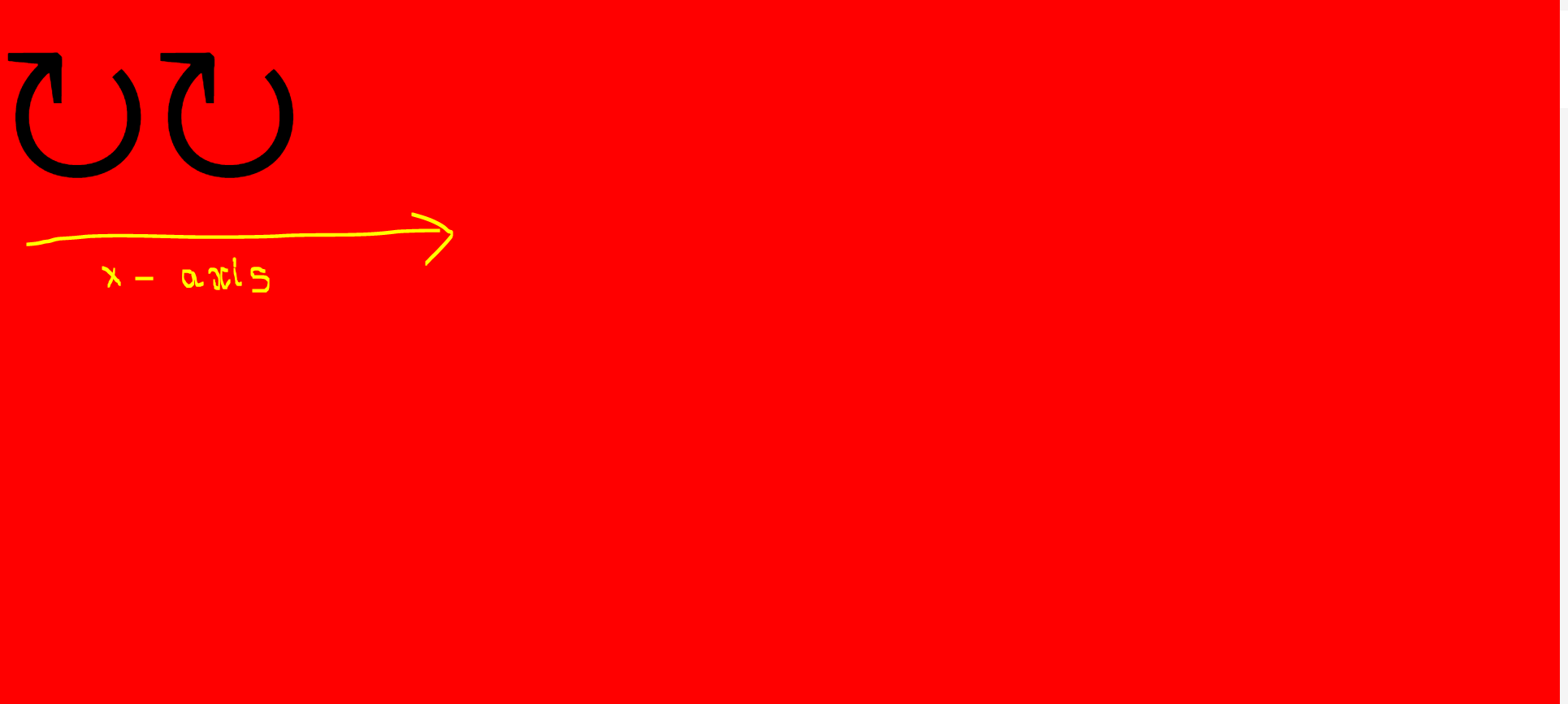


What if i give the property justify-content:center to the container?
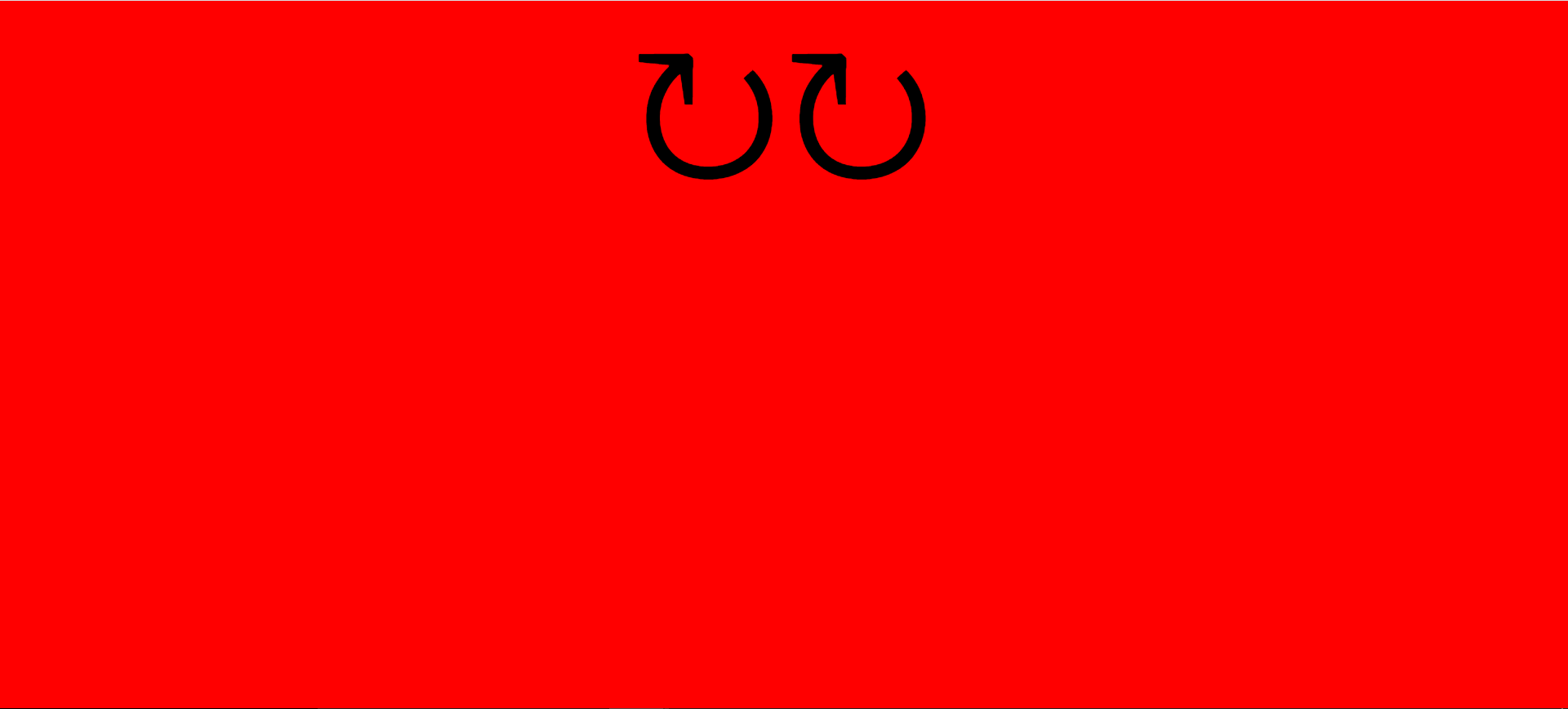

You guessed it right. The icons are now moved to the center of the x-axis.

Let me remove justify-content property and add another CSS property to the container :- align-items:center and see what happens:


The icons are now placed in the center of the y-axis.

What if i add both the properties (justify-content:center , align-items:center) to the container?


The icons are placed in the center of both x-axis and y-axis.


flex-direction: column

If the flex-direction of the container is column, it's children will be placed one after the other vertically. Meaning, the primary axis is now y-axis.


Now justify-content:center will place the icons in the center of y-axis as it is the primary axis. and align-items:center will place them in the center of x-axis


justify-content:center
 

align-items:center


(justify-content:center , align-items:center)


CHEATSHEET:


 flex-direction     primary axis     justify-content     align-items    
 row x-axis x-axis     y-axis    
 column y-axis y-axis x-axis


POINT TO REMEMBER:

justify-content acts on primary axis.


A simple JS App - setInterval()

STOP WATCH


stopwatch


The app is built using HTML , CSS & JS.  
The problem statement for this app can be found here :  MDN Web Docs - Asynchronous JS 

The app is designed using CSS flex box.


stopWatch.html:

 1
 2
 3
 4
 5
 6
 7
 8
 9
10
11
12
13
14
15
16
17
18
19
20
21
<html>
    <head>
    <script src="stopWatch.js" defer></script>

    <link rel="stylesheet" type="text/css" href="stopWatch.css">
</head>
<body class="main-layout">
    <div class="container">
    <div class="display">
        <div class="hour">00 </div><span class="colon">:</span>
        <div class="minute">00 </div><span class="colon">:</span>
        <div class="second">00 </div>
    </div>
    <div class="button-group">
    <button class="start-button">Start</button>
    <button class="stop-button">Stop</button>
    <button class="reset-button">Reset</button>
     </div>
    </div>
</body>
</html>


stopWatch.css:

 1
 2
 3
 4
 5
 6
 7
 8
 9
10
11
12
13
14
15
16
17
18
19
20
21
22
23
24
25
26
27
28
29
30
31
32
33
34
35
36
37
38
39
40
41
42
43
44
45
46
47
48
49
50
51
52
53
54
55
56
57
58
59
60
61
62
63
64
65
66
67
68
69
70
71
72
73
74
75
76
77
.main-layout {
    display: flex;
    align-items: center;
    background-color: bisque;
}
.container {
    display: flex;
    flex-direction: column;
    align-items: center;
    justify-content: center;
    width:500px;
    height:250px;
    margin: auto;
    background-color: black;
    border-radius: 10px;
    box-shadow: 4px 5px 6px 4px grey;
}

.display {
    display: flex;
    align-items: center;
}

.display div{
    margin-left: 0.5em;
    margin-right: 0.5em;
    border: 1px;
    border-radius: 8px;
    border-color: blue;
    box-shadow: 4px 5px 6px 1px rgb(20, 96, 143), 3px 5px 8px 0.5px rgb(245, 58, 58);
    border-style: solid;
    width: fit-content;
    padding: 1em;
    font-family: 'Franklin Gothic Medium', 'Arial Narrow', Arial, sans-serif;
    color: whitesmoke;
}

[class$='button'] {
    margin-left: 0.5em;
    margin-right: 0.5em;
}

.button-group {
    display:flex;
    align-items: center;
    margin-top: 2em;
}

.button-group * {
    display: flex;
    border-radius: 10px;
    padding-top: 2px;
}

.stop-button {
    background-color: rgb(211, 35, 35);
    box-shadow: 1px 1px 7px 1px rgb(235, 83, 83);
}

.reset-button {
    background-color: rgb(230, 179, 13);
    box-shadow: 1px 1px 7px 1px rgb(231, 195, 78);
}

.start-button {
    background-color: yellowgreen;
    box-shadow: 1px 1px 7px 1px yellow; /**/
}

[class$='button']:focus  {
    outline: none;
}

.colon {
    padding: 0.5em;
    color : whitesmoke;
}


stopWatch.js:

 1
 2
 3
 4
 5
 6
 7
 8
 9
10
11
12
13
14
15
16
17
18
19
20
21
22
23
24
25
26
27
28
29
30
31
32
33
34
35
36
37
38
39
40
41
42
43
44
45
46
47
48
49
50
51
52
53
54
55
56
57
58
59
60
61
62
63
64
65
66
67
68
69
70
71
72
73
74
75
76
let counter = 0;
let hourDisplay = document.querySelector(".hour");
let minDisplay = document.querySelector(".minute");
let secDisplay = document.querySelector(".second");
let clock;
const TIME_PART_SECOND = 'SECOND';
const TIME_PART_MINUTE = 'MINUTE';
const ALERT_TIME_COLOR = "red";
const DEFAULT_TIME_COLOR = "white";

let startButton = document.querySelector(".start-button");
startButton.addEventListener('click',() =>{
    console.log("starting timer");
    clock=setInterval(startTimer, 1000);

});


// callback method used in setInterval method
let startTimer = () =>{
    counter++;
   let hoursElapsed = Math.floor(counter / 3600);
   let minsElapsed = (Math.floor(counter/60) % 60);
   let secondsElapsed =Math.floor(counter) % 60;
   
   // change the color of the display font for minutes and seconds if either of them 
   // is 10 seconds or minutes from 60
   checkTimeLeftInTimePart(secondsElapsed, TIME_PART_SECOND);
   checkTimeLeftInTimePart(minsElapsed,TIME_PART_MINUTE);

   //Format the time parts to 01:01:01 if they are less than 10
    secDisplay.textContent=secondsElapsed < 10 ? `0${secondsElapsed}` : secondsElapsed;
    minDisplay.textContent= minsElapsed < 10 ? `0${minsElapsed}` : minsElapsed;
    hourDisplay.textContent = hoursElapsed < 10 ? `0${hoursElapsed}` :hoursElapsed;
}

// stop the timer by clearing the interval
let stopButton = document.querySelector(".stop-button");
stopButton.addEventListener('click', ()=>{
    console.log("Stopping timer");
    clearInterval(clock);
});

// reset the counter to 0 and update the display
let resetButton = document.querySelector(".reset-button");
resetButton.addEventListener('click', ()=> {
    counter=0;
    secDisplay.textContent='00';
    minDisplay.textContent='00';
    hourDisplay.textContent='00';
});

// Function: check if the time part (seconds and minutes) lies between 50 and 60
// change the color to red if the above condition is true
// else change it to the default color
let checkTimeLeftInTimePart = (time, timePart) =>{
    if(time >= 50 && time < 60) {
        changeTimePartFontColor(ALERT_TIME_COLOR, timePart);
    } else {
        changeTimePartFontColor(DEFAULT_TIME_COLOR, timePart);
    }
}

//Function: change the color of the display text for minutes and seconds
let changeTimePartFontColor = (color,timePart) => {
    switch(timePart) {
        case TIME_PART_SECOND:
            secDisplay.style.color = color;
            break;
        case TIME_PART_MINUTE:
            minDisplay.style.color = color;
            break;
        default:
            // do nothing
    }
} 


Bonus:

How to set favicon (tab icon):

  1. Convert your image to .ico file here: convertico
  2. Copy the file to your project folder.
  3.  Add the below line inside the <head> tag in stopWatch.html.
<link rel="shortcut icon" type="image/x-icon" href="favicon.ico">


Referesh your html page and see the favicon in your boswer tab.


Github link : Stop Watch Repo


JS Animation for Beginners

Simple Spinner Animation The Start and Stop Spinner app example given in MDN docs (  Go to example  ) has one drawback. When you s...